Independent Verification of Certified Documents and Emails
Don't just trust the result. Verify the evidence yourself.
For every Certidox-certified document or email, an Independent Verification Bundle is available. It contains the encrypted certified reference, the information required to reconstruct it, and the technical evidence needed for independent checks.
A reviewer can check historical content integrity and timestamp evidence using independent cryptographic tools, without relying exclusively on the Certidox verification interface.
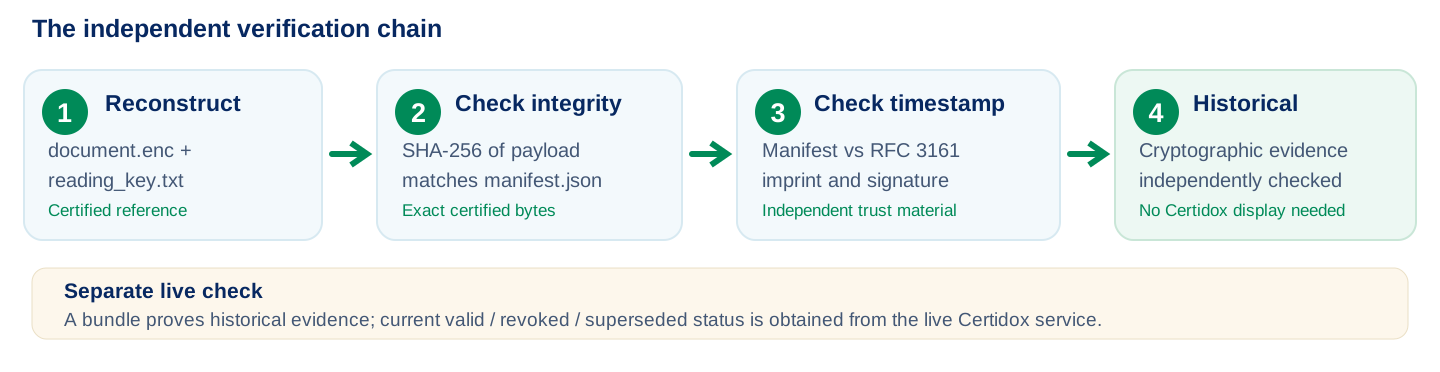
document.enc + reading_key.txt
Certified reference
SHA-256 of payload matches manifest.json
Exact certified bytes
Manifest vs RFC 3161 imprint and signature
Independent trust material
Cryptographic evidence independently checked
No Certidox display needed
A bundle proves historical evidence; current valid / revoked / superseded status is obtained from the live Certidox service.
What Independent Verification Establishes
The bundle allows a technical reviewer to determine whether:
- The encrypted payload can be decrypted using the corresponding reading key.
- The SHA-256 fingerprint of the reconstructed reference matches the fingerprint recorded in
manifest.json. - The exact
manifest.jsonbytes match the RFC 3161 message imprint in the timestamp response. - The timestamp signature and trust chain validate using certificates obtained and checked independently.
Together, these checks provide cryptographic evidence linking the exact reconstructed content and the certification information recorded in its manifest to the independently timestamped record.
The manifest contains the recorded certifier and organization. Cryptographic verification protects those recorded statements against subsequent alteration; it does not independently establish the person’s legal authority or the truth of the document.
What Is Inside an Independent Verification Bundle?
Each sample bundle contains seven clearly identified files. The following names and functions are taken from the actual Certidox bundle used in this demonstration.
| Bundle file | Purpose |
|---|---|
document.enc | AES-256-GCM encrypted certified PDF or structured email-content representation. |
reading_key.txt | Reading key used to decrypt the certified payload. |
manifest.json | Certification identifier, SHA-256 of the payload, event time and recorded certifier information. |
response.tsr | RFC 3161 timestamp response linked to the exact manifest bytes. |
decrypt.py | Convenience script that reconstructs the certified reference. |
verify_timestamp.sh | Convenience script that checks integrity and timestamp evidence. |
readme.txt | Technical instructions, verification limits and evidence-preservation guidance. |
Try It with a Real Certidox-Certified Document
This demonstration uses a real two-page Certidox-certified PDF and its corresponding Independent Verification Bundle. The PDF you download is byte-for-byte identical to the certified reference reconstructed from the bundle. You can independently examine its historical cryptographic evidence, then scan the QR code to check its current status.
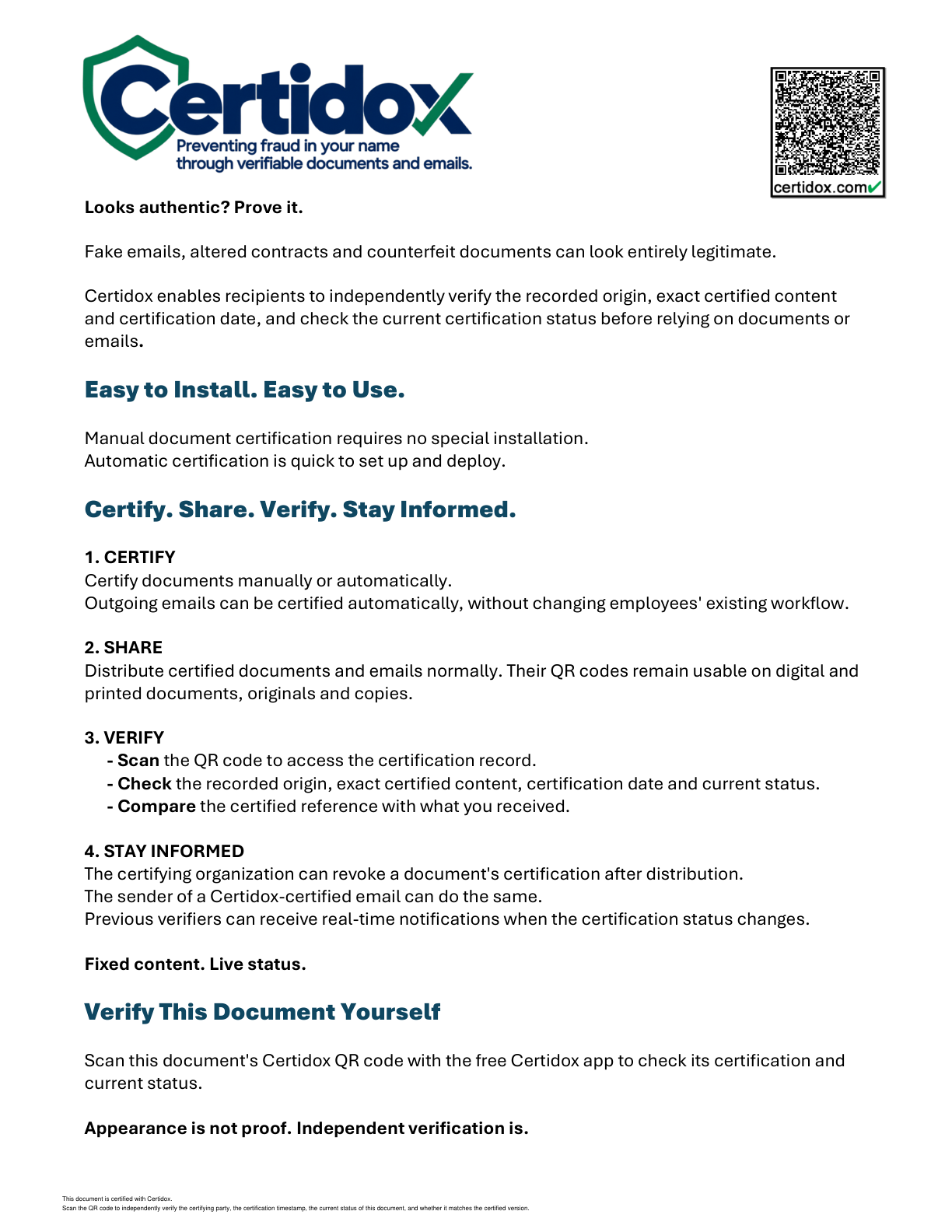
Step 1. Download the certified document and scan its QR code
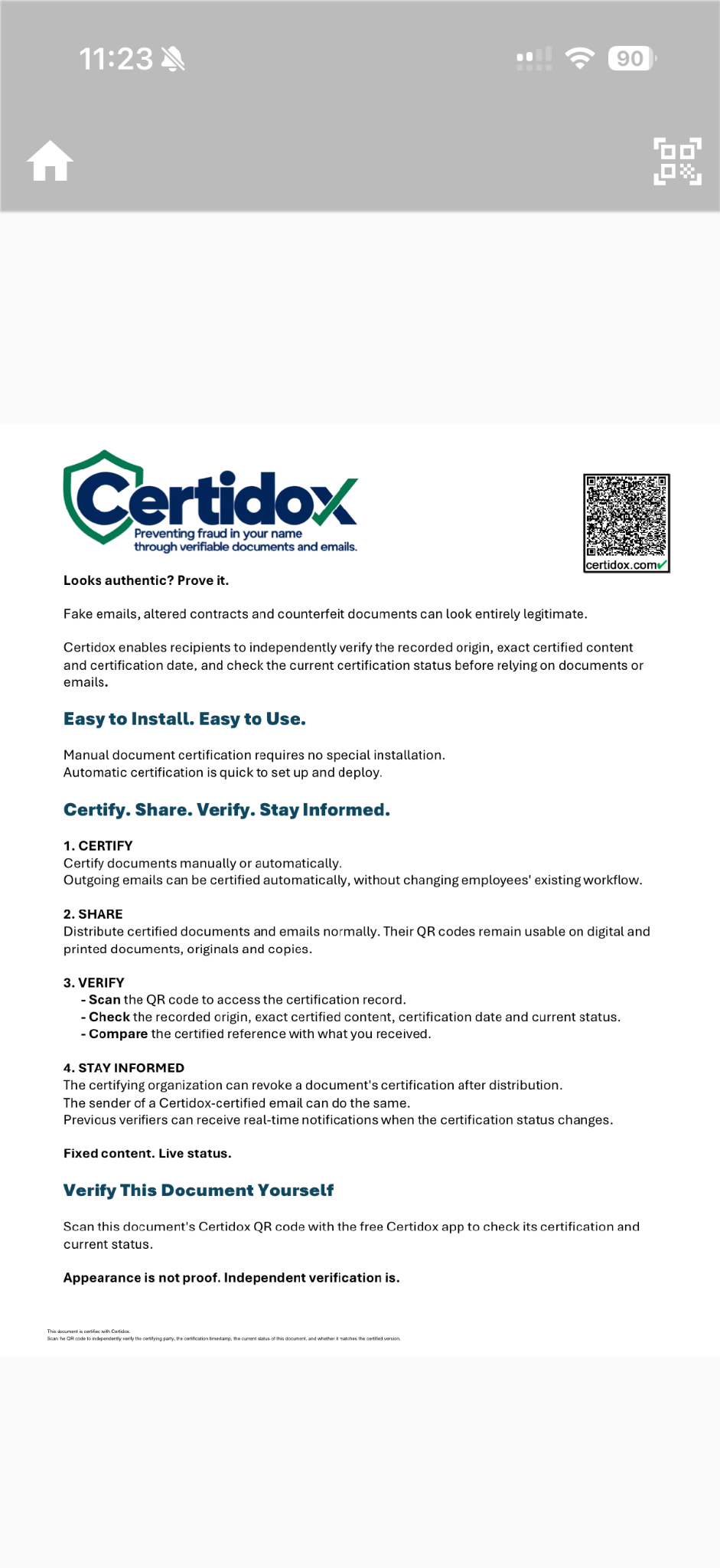
Open the sample PDF on a computer or print it. Scan its Certidox QR code with the free mobile application to check the recorded certifier, certification date and current status.
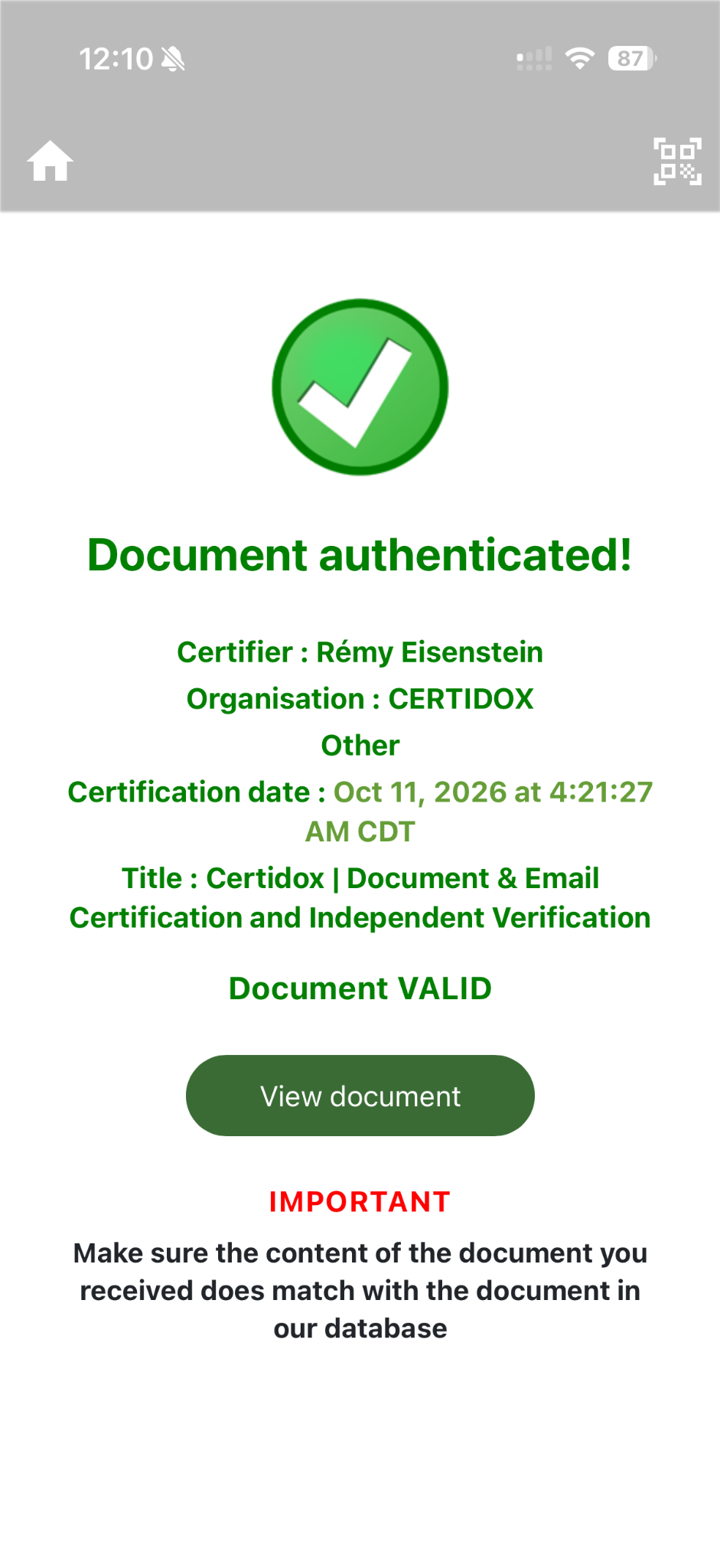
Step 2. Inspect the reference and status history
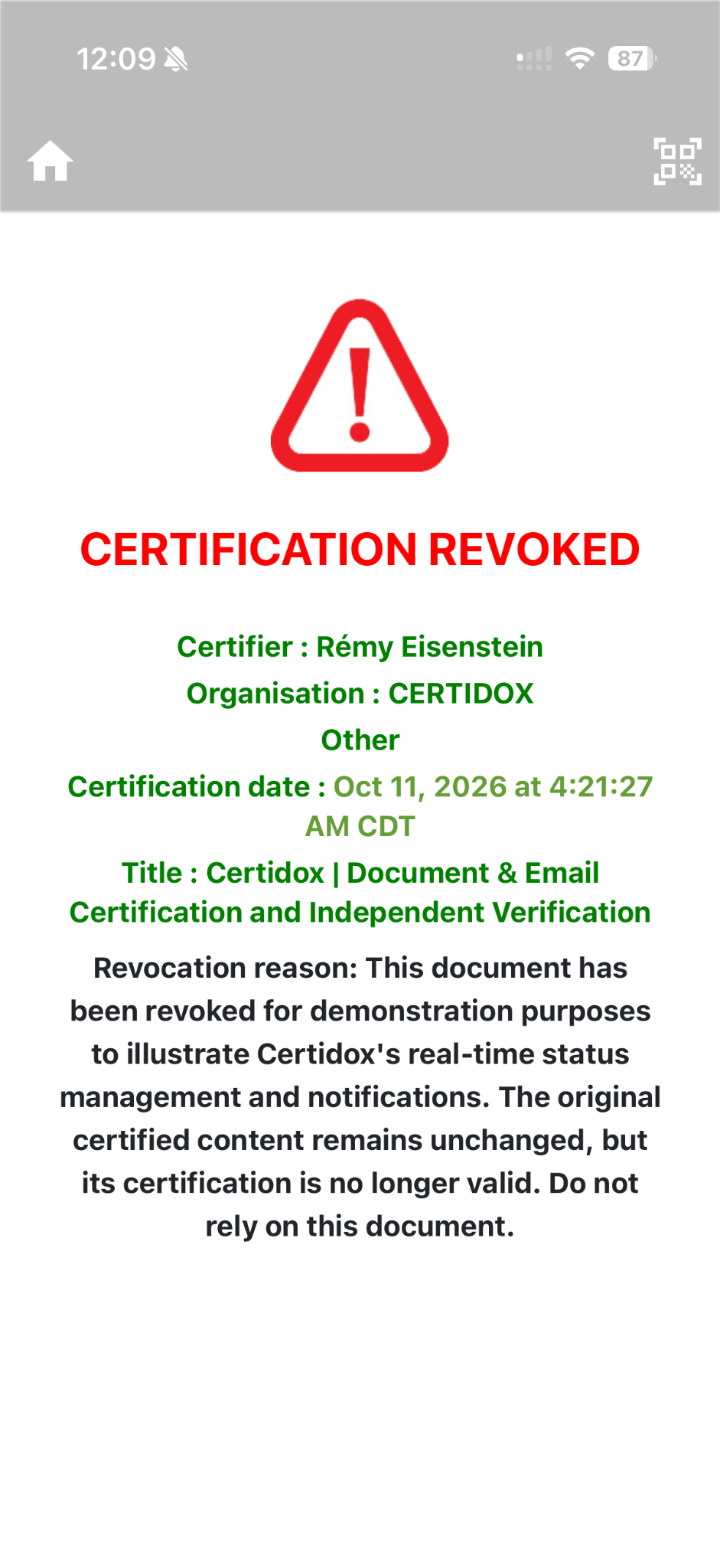
The app displays the certification information. Select View document to compare the certified reference with the file you received. Historical screenshots show the transition from valid to revoked for demonstration purposes: its certified content remained fixed while its live status changed.
Step 3. Download the real evidence ZIP
The corresponding bundle contains the encrypted certified PDF, reading key, manifest, timestamp response and verification scripts. Decrypting document.enc recovers exactly the PDF supplied in Step 1, whose SHA-256 matches payload_sha256 in the manifest.
Matching evidence: the downloaded certified PDF and the bundle's decrypted payload have the same SHA-256, 9285962c6750c029eaf95bb20606a8e877a4884eb979460c59caa7d3607bd42e. The RFC 3161 timestamp response carries the SHA-256 imprint of the exact manifest.json bytes. Independently validate the timestamp signature and trust chain using suitable trust material.
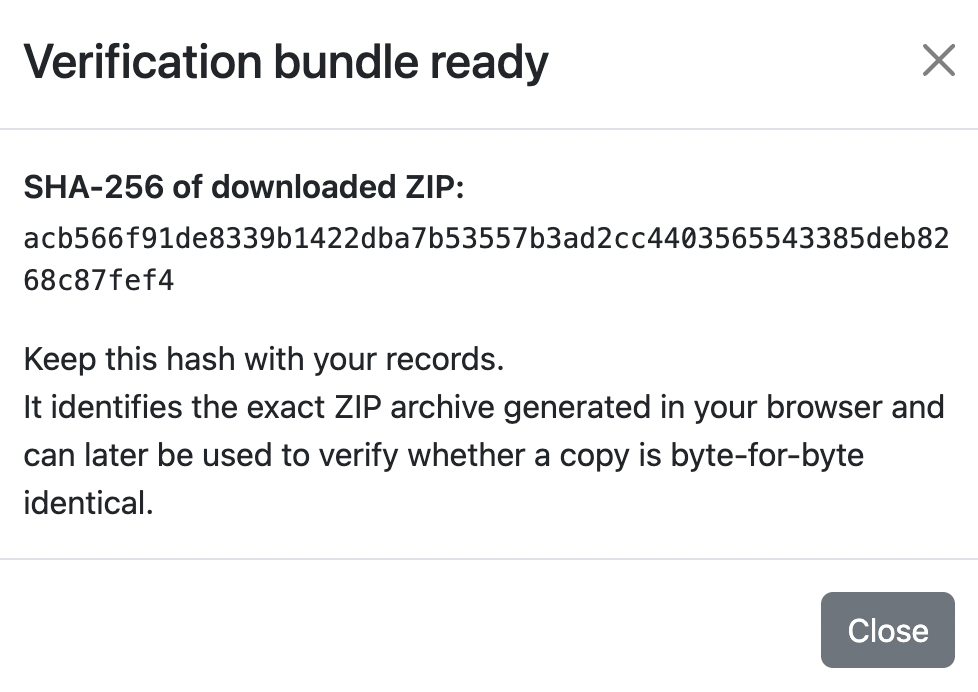
SHA-256 of the downloadable evidence ZIPacb566f91de8339b1422dba7b53557b3ad2cc4403565543385deb8268c87fef4
How to Check the Evidence Independently
- Preserve the original ZIP. Record its SHA-256 and work from an extracted copy. The ZIP fingerprint identifies that exact archive.
- Reconstruct the certified reference. Run
python3 decrypt.pywith Python and the required cryptography package to recover the certified PDF or structured email record. - Check the exact content. Calculate the SHA-256 of the reconstructed payload and compare it with
payload_sha256insidemanifest.json. - Verify the timestamp imprint and signature. Confirm that the RFC 3161 response covers the exact bytes of
manifest.json, and validate the signed timestamp using independently obtained trust certificates. - Compare with the document presented. For byte-identical digital files, compare SHA-256 hashes; for printed, scanned or otherwise rendered copies, compare the presented content with the reconstructed certified reference.
python3 decrypt.py
bash verify_timestamp.sh
These bundled scripts are convenience tools, not trust anchors. Review them before running, verify the provenance of timestamp trust certificates and use a suitable controlled environment.
Understand the Different Fingerprints and Timestamps
Three hashes serve different purposes
- ZIP SHA-256: identifies the exact exported archive (including its packaging).
- Payload SHA-256: identifies the exact reconstructed certified reference bytes.
- Manifest SHA-256: is the value bound to the RFC 3161 timestamp response.
These are not interchangeable. A printed or re-exported document can look the same while its file-level SHA-256 differs from the certified digital reference.
Two timestamps serve different purposes
The certification_event_time_utc in the manifest is Certidox’s recorded certification-event time. The RFC 3161 genTime is the independent timestamp authority’s asserted time. They need not be identical.
Certified Emails and Printed Documents
Emails: a certified content representation, not a delivery receipt
For a certified email, the reconstructed reference is a structured record, potentially containing sender, recipients, subject, body, body type and attachment metadata. It is not a recreated .eml file, does not include the actual attachment content, and does not independently prove delivery, receipt or reading.
Printed documents: compare content, not paper hashes
A printed page has no file-level SHA-256. A scan or photograph generally has different digital bytes. The certification QR code provides access to the fixed digital reference, against which the presented document can be compared.
Independent Historical Proof vs. Current Certification Status
An Independent Verification Bundle preserves evidence about what was certified, the recorded certifier information, the exact reference content and timestamping. It does not establish whether Certidox subsequently marked the certification valid, revoked or superseded.
Open Source, AI Assistance and Confidentiality
Certidox is not a black box. Its open-source verification components can be reviewed and audited. The Certidox SI Skills can help AI agents inspect bundle files and explain technical checks, but AI-generated explanations are not a substitute for cryptographic validation.
Certidox’s confidentiality architecture keeps readable document and email content, and decryption keys, off its servers. However, a recipient of a complete verification ZIP can recover the certified payload using the included reading key. Handle such evidence as sensitive information when appropriate.
Frequently Asked Questions
Can a document be independently verified without trusting the Certidox app?
Yes. With the complete bundle and independently obtained timestamp trust material, a reviewer can reconstruct the certified reference and check the historical cryptographic evidence using independent tools.
Does the ZIP prove that a certification is currently valid?
No. The ZIP contains historical evidence. Current status is a separate live Certidox service value.
Does a matching SHA-256 prove every claim in the document is true?
No. It checks the integrity of the exact certified payload against the recorded fingerprint. It does not establish factual truth, legal authority or admissibility.
Can I check a printed or scanned copy?
Yes. Use the QR code to retrieve the certified digital reference and compare the presented content. Byte-for-byte SHA-256 identity applies to identical digital files, not paper copies.
Can an AI agent validate the evidence for me?
AI-assisted tools can interpret files and results. Independent cryptographic checks, including the RFC 3161 trust chain, are still required.
See the Evidence for Yourself
Download the certified demonstration PDF and its corresponding Independent Verification Bundle. Reconstruct the PDF from the ZIP, verify the matching SHA-256 and historical timestamp evidence, and scan the PDF’s QR code for its current certification status.